Showing posts with label price guide how to. Show all posts

Friday, July 8, 2011

How to Filter Price Guide by Console

Many price guide subscribers are only interested in seeing prices for certain consoles. Maybe they only sell newer consoles like Xbox 360, PS3, and Wii. This guide below shows you how to display only the consoles you want using Excel.

Download the Price Guide

Download the price guide and save it to your computer. (If you're not a subscriber you can start a free account)

Select Data to Filter

Click on cell "A1". Then go to the "Data" menu and choose Filter > AutoFilter.
Excel Auto Filter

This will select all the data and insert drop-down menus at the top of every column.
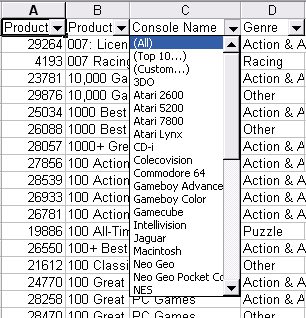
Excel Auto Filter Enabled

Choose The Console You Want To See

Click on the drop-down menu in the "Console Name" column. This will bring up a list of all the consoles in the price guide. Choose the console you want to see and Excel will only show items matching that console.

This article is a part of a series of posts with how to articles for our price guide subscribers.
How To Force Excel to Show Leading Zero in UPC

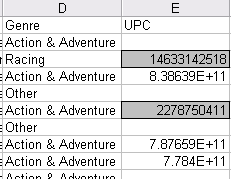
When Microsoft Excel opens a .csv file it assumes it knows what type of data is in every column. If there are numbers it must be a number. If there is some text, it must be a text column. If Excel decides a column is a number it will drop all the zero's at the beginning assuming they don't matter. This makes UPC data incorrect.

Excel No Leading Zero
There is an easy way to force Excel to keep the leading zero on UPC data though:

1. Download The Price Guide

Download the price guide and save it to your computer. (If you're not a subscriber you can start a free account)

2. Change the Guide to a Text File

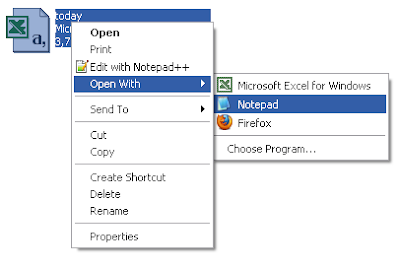
Go to the folder where you saved the price guide. Right click the file and choose Open With > Notepad.

Open File in Notepad

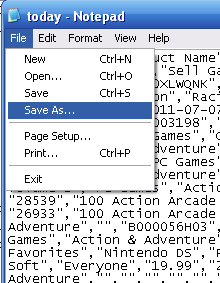
In Notepad, go to File > Save As. Save the file a .TXT file type.

Save As

Open The .TXT File in Excel

Open Excel and open the file "today.txt" that you just created. This will open a series of three questions.

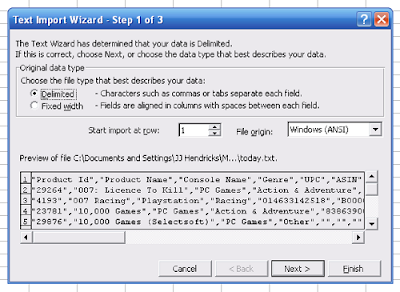
Question 1: Select "Delimited" and then click "Next"
Excel Text Import Wizard

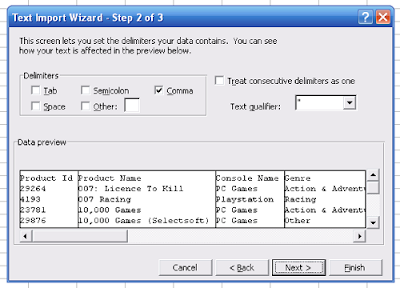
Question 2: Select "Comma" and click "Next"
Excel Text Import Wizard 2

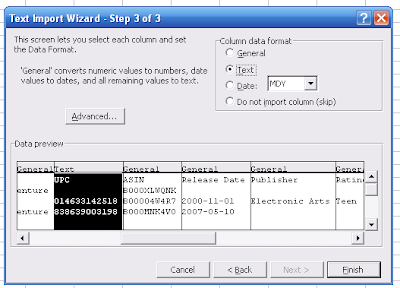
Question 3: Find the UPC column and change it to "Text" instead of "General". Click "Finish"
Excel Text Import Wizard3

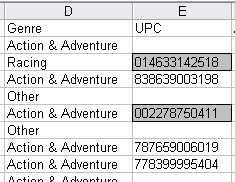
Spreadsheet Showing Leading Zero in UPC

Excel will now show the price guide with the leading zero still intact so all UPC data will be the complete 12 characters.
Excel Showing Leading Zero

This article is a part of a series of posts with how to articles for our price guide subscribers.
ShareThis


Login | Create Account